
Image to Prompt for Stable Diffusion (SDXL)
Get a Stable Diffusion (SDXL) keyword prompt from any image. Picslot lists the subject, style, lighting and quality terms in the keyword-style format Stable Diffusion users expect.
- Image analysis
- 20 output languages
- Copy-ready prompts
- Midjourney, Flux, SDXL & DALL·E
Image to Prompt tool
Input Image
Select or drag the image
JPG, PNG or WebP · up to 25 MB · at least 150 px
Tip: press Ctrl+V to paste a copied image
Select AI Model
Midjourney and Stable Diffusion keyword prompts stay in English, because those tools work best that way.
Uses 1 credit · — available · Get more
Your browser shrinks the image, metadata such as location is removed, and an AI service analyses it. We do not store the image; only the text prompts are kept for 30 days. Privacy details.
Generated Prompt
Prompt HistoryThe prompt will be displayed here after generation. Add an image, pick a model and a language, then press Generate Prompt.
How to use "with my photo" in other tools
- Chat image tools (Gemini, ChatGPT and similar): attach your own photo, then paste the "with my photo" prompt.
- Midjourney: upload your photo and use its image/character reference option together with the prompt (the exact feature name depends on the version — check Midjourney's docs).
- Flux image-editing models and Stable Diffusion: use the reference-image or face-identity options (for example IP-Adapter or similar nodes) with your photo.
- Only use photos of yourself or people who agreed, and label AI images as AI-generated where required.
- Free daily credits
- Image not stored
- 20 output languages
- 5 AI model styles
Tips for Stable Diffusion prompts
- Stable Diffusion works well with keyword-style prompts, so the SDXL version is written that way.
- Pair it with a negative prompt, for example "blurry, extra fingers", to avoid common flaws.
- Match the aspect ratio in your generator to your reference image for closer results.
How to get a Stable Diffusion prompt from an image
- 1Add your image: upload it, drag it in, or paste it with Ctrl+V.
- 2Stable Diffusion is already selected as your target. You can change it at any time.
- 3Tick the confirmation box and press Generate prompt. It takes a few seconds.
- 4Copy the Stable Diffusion prompt, edit it if you like, and paste it into Stable Diffusion to create your image.
Your Recent Prompts
Kept in your account for 30 days. Only the text is saved, never the image.
Your prompt history will appear here.
Sign in and generate your first prompt to keep track of your recent creations.
Sign inReal Stable Diffusion prompts and the images they made
Real prompts shared by the community, each with the image it created. Open one to copy it.
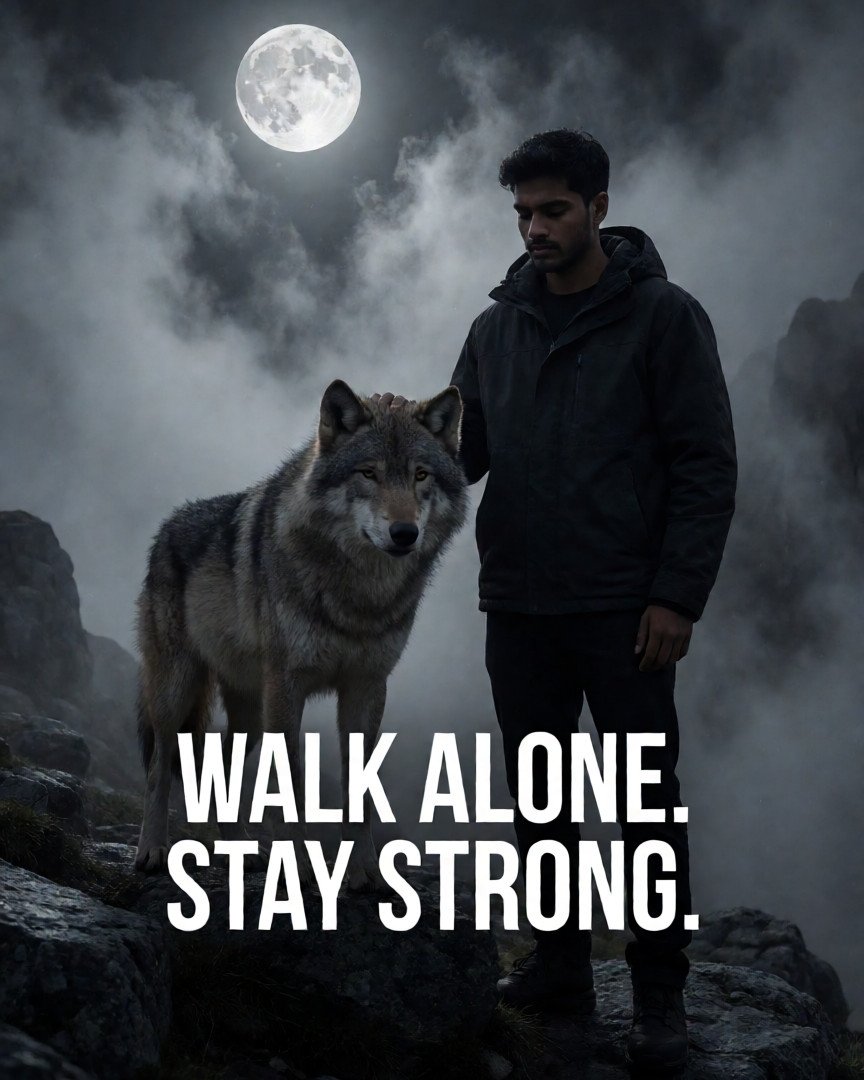 Cinematic Dark Status Wallpaper: Lone WolfCreate a cinematic dark status wallpaper featuring a lone wolf standing on a rocky mountain beneath a full moon. Thick mist, dramatic moonlight, blac…
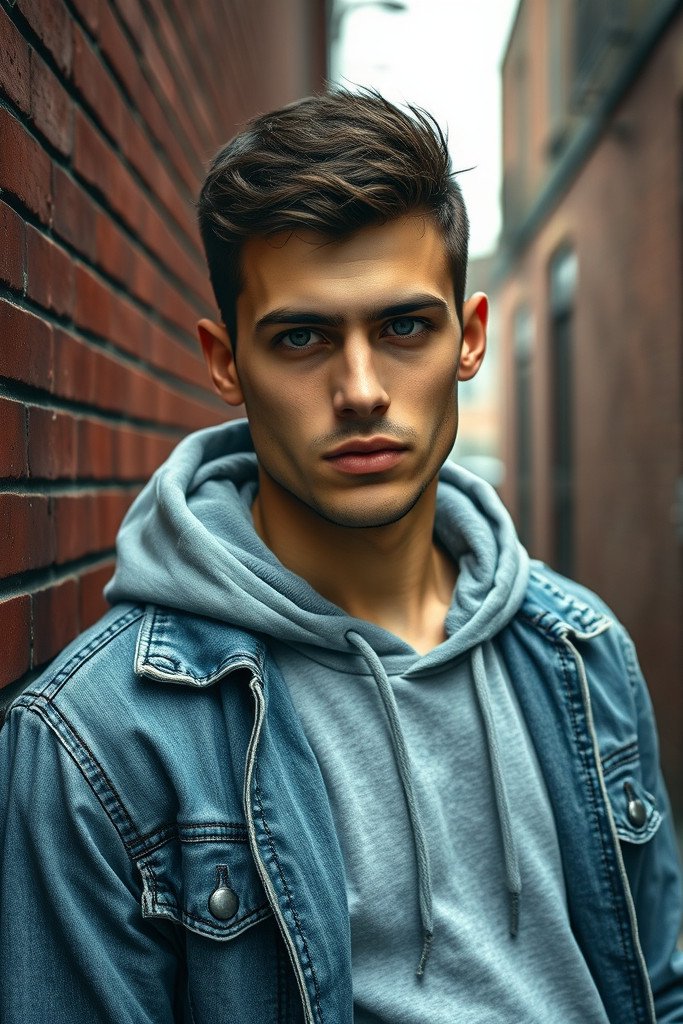 Gritty Urban Portrait of Young ManPhotorealistic gritty urban portrait of a young man with a slight stubble and short, textured dark hair, wearing a distressed denim jacket over a gra…
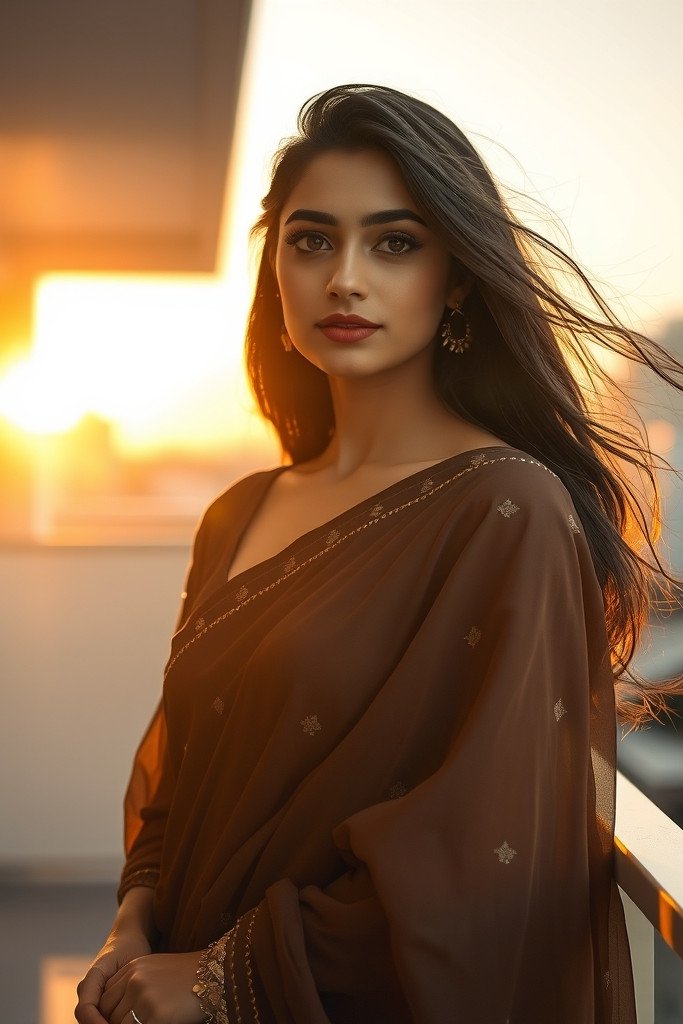 Elegant South Asian Woman in Golden HourA cinematic, ultra-realistic portrait of a graceful young South Asian woman wearing an elegant, modern chocolate brown chiffon saree with delicate su…
Image to prompt for every AI tool
Learn better prompting
All guides →Frequently Asked Questions
Does it work with SDXL and other Stable Diffusion models?
The SDXL version is written for Stable Diffusion XL style keyword prompts. Other Stable Diffusion models usually accept it too, but check your results.
Do I need a negative prompt?
It is optional, but many people add one to remove blur or distortions. Read the negative prompts guide to learn how.
What is an image-to-prompt generator?
It looks at a picture and writes a text description you could give an AI image generator to create a similar image. Choose a target model and Picslot tailors the prompt to its preferred style.
Is Picslot's image-to-prompt generator free to use?
You can start for free. One analysis costs 1 credit and every account gets 5 free credits each day (they do not accumulate). You need to sign in to generate. Paid plans add extra credits; see Plans & Pricing.
How do I convert an image into an AI prompt?
Add an image in the Prompt Studio, choose an output language and target model, tick the confirmation box and press Generate prompt. After a short wait you can read, copy and edit the selected model prompt.
Explore More AI Tools
More ways to find, create and refine AI image prompts on Picslot.
Explore AI Image Prompts
Browse prompts shared by the community, filter by model, category and style, and copy any of them.
Create an AI Image
Turn a written prompt into an image, then share it with its prompt.
Prompt Mixer
Take the subject from one picture and the style from another, blended into one prompt.
One-Tap Makeover
Pick a style, add one photo of yourself and get a picture of you in that style.
AI Photoshoot
Recreate a look you like with yourself in it.
Browser Extension
Right-click any image on the web to get its prompt.
Share to Explore
Your image will be published next to the prompt so others can see what it creates — that is how you earn +10 coins plus more when people like, copy or save it.